Slitherio Controls on iPad: Stop Fat-Finger Deaths
Contents
On an iPad, GameSlither is pure touch: you put a finger on the glass, drag, and your snake turns toward wherever that finger is. Boost lives on the ⚡ button (or a held touch), and it costs length while dropping pellets behind you. The catch is that your hand is also the thing blocking your view — and that is where most fat-finger deaths come from, not from bad reflexes.
Below is everything I'd tell a friend who just picked up a tablet and keeps dying at length 300 with a confused look on their face.
How slitherio controls on iPad actually work
There's no D-pad, no joystick to memorise. The entire control scheme is:
- Touch and drag — your snake steers toward your finger. Keep the finger down and lead the head, don't chase it.
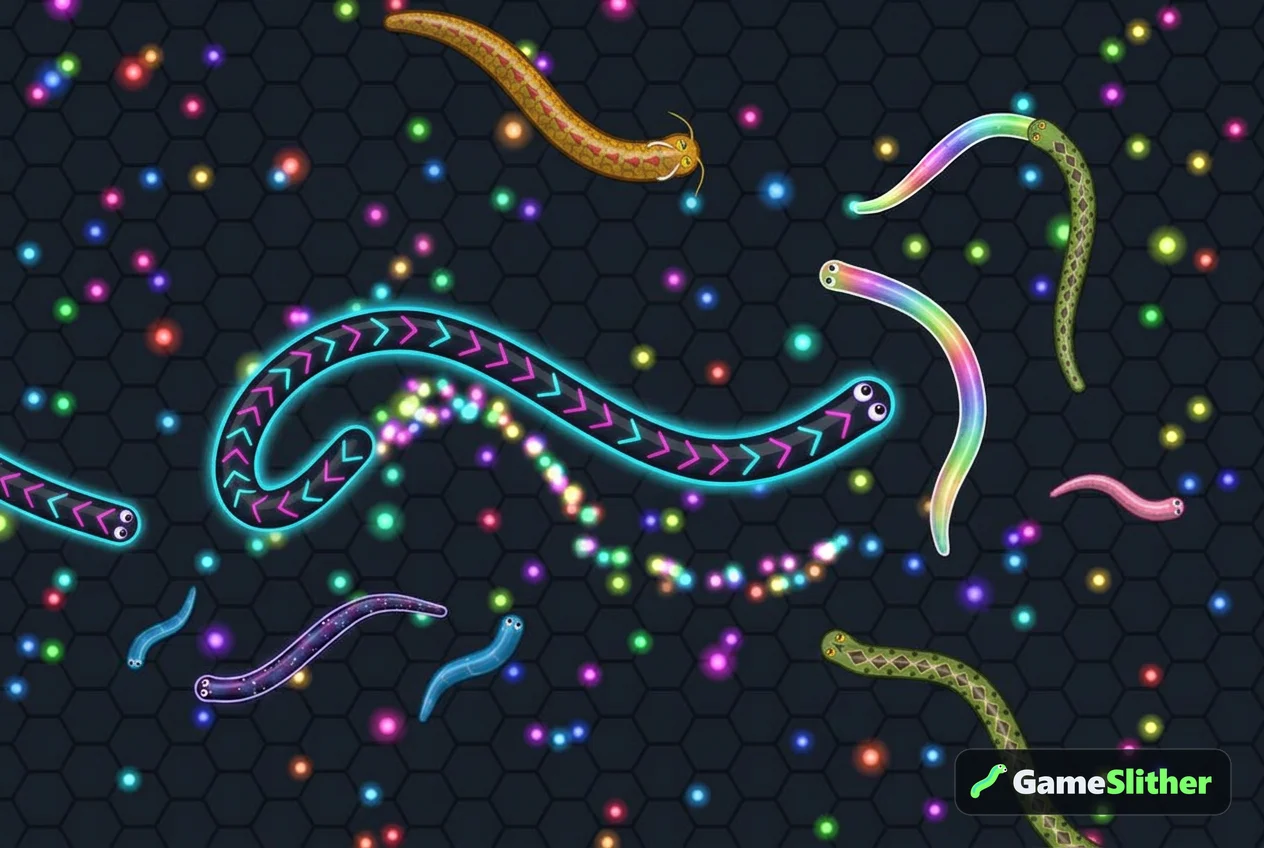
- Boost — hold the ⚡ button (or keep a touch held down) to sprint. You burn length and leave a glowing pellet trail for everyone behind you.
- Release — let go of boost and you instantly return to normal speed.
That's it. The same three inputs power every lobby, every private room and every world-record attempt. If you want the full breakdown of the game loop first, the how to play guide covers spawning, growth and kills in a couple of minutes.
The reason iPad play feels different from desktop is geometry. A mouse cursor is one pixel; your fingertip covers a blob of screen roughly the size of three pellets, and your palm hovers over a chunk of the arena you'd really like to see. Everything below is about fixing that.
Set up the iPad before you spawn
Thirty seconds of prep saves a dozen runs.
- Landscape, always. A wider arena view means you spot incoming snakes earlier. Portrait on a tablet is a death sentence in crowded zones.
- Lock rotation. Nothing ruins a tight dodge like the screen flipping because you leaned sideways on the sofa.
- Clean the glass. A greasy screen makes your finger stutter mid-turn. One wipe on a t-shirt is enough.
- Turn on Do Not Disturb. A banner notification dropping over the top of the screen at the exact moment a Golden Dragon cuts you off is a uniquely painful way to lose 1,200 length.
- Take the case off, or at least fold the cover back. Chunky cases force your thumbs into a cramped angle and that angle is where fat-finger deaths are born.
- Sound on or off, your call. There's a mute button in-game, but audio cues help on iPad because tablets don't buzz like phones do — you lose the vibration feedback that phone players get, so sound is your only extra signal.
GameSlither runs straight in Safari or Chrome with no download and no sign-up, so you can do all of this and still be in a lobby inside a minute.
The grip that stops fat-finger deaths
Most iPad players rest the tablet flat on a table and poke at it like a touchscreen menu. That's the worst option: your whole forearm casts a shadow over the play area and your wrist has no pivot point.
The cradle grip (best overall)
Hold the iPad in landscape with both hands at the lower corners, thumbs on the glass. Steer with your dominant thumb near the bottom corner, keeping your snake's head in the middle of the screen. Your other thumb sits near the ⚡ button.
Why it works: your thumb never travels across the centre of the screen, so you always see what's in front of your head. You get wide, smooth arcs instead of jerky corrections.
The lap-prop grip
Prop the iPad against your knees or a cushion at roughly a 30–45° angle and use one index finger to steer, keeping your hand below the snake's head, never above it. Great for long survival runs because your hand isn't holding any weight.
What to avoid
- Steering with your finger directly on top of your snake's head. You literally cannot see the pellet or the body you're about to hit.
- Flat-on-table plus hovering arm. Shadows, glare, sore shoulder.
- Switching hands mid-game. Your muscle memory resets and you'll over-turn into your own body.
Boost without throwing away your run
Boost is where iPad players leak the most length. On a mouse you feel the click; on glass it's easy to keep pressing for a full second longer than you meant to.
Three habits that fix it:
- Count your boosts in taps, not seconds. Short bursts — think "one, release" — are enough to close a cut-off. Long holds are only for escaping a genuine trap.
- Put the boost thumb on the opposite side from the steering thumb. If both jobs live on one hand, every boost nudges your steering finger and your snake wobbles exactly when you need a clean line.
- Never boost toward an edge of the screen you can't see past. On iPad you have less reaction distance than a desktop player with the same view, so blind sprints end badly.
If you want the deeper maths on when sprinting actually pays for itself, there's a full breakdown in how to boost without losing all your length.
iPad vs iPhone vs desktop: what actually changes
| iPad / tablet | iPhone / phone | Desktop mouse | |
|---|---|---|---|
| Steering precision | High — big screen, long arcs | Medium — small turning space | Highest — pixel-level |
| Screen blocked by your hand | Moderate (thumbs only, if you grip right) | High | None |
| Boost input | ⚡ button or held touch | ⚡ button or held touch | Left click or Space |
| Field of view | Widest of the touch options | Narrow | Wide |
| Extra feedback | Sound only | Sound + vibration | Sound |
| Best for | Long survival runs, big-snake play | Quick games on the go | Precise cut-offs |
The honest summary: an iPad gives you nearly desktop-sized awareness with touch steering that's smoother than a phone. The only real tax is your hand sitting on the playfield. Fix the grip and the gap almost disappears. For a side-by-side of every input method, see snake io game controls: mouse vs keyboard vs touch.
Five touch mistakes that end runs early
1. Lifting your finger mid-turn. The most common iPad death by far. Your snake keeps its last heading and sails straight into the body you were curving around. Commit to the drag until you're clear.
2. Over-correcting. Touch feels sluggish for about 20 seconds, so new players swipe harder. The result is a snake that zigzags and eventually clips its own coil. Make small movements; the head catches up.
3. Fighting for pellets in a crowd. When a big snake pops, three gluttons sprint for the loot. On iPad you lose split-second scrambles more often than mouse players, so take the outer edge of the pellet pile instead of the centre.
4. Ignoring the minimap. It's right there and it costs nothing to glance at. Edges of the map are quieter — great places to grow before you head back into the 40-snake scrum.
5. Playing with 3% battery or a hot iPad. Thermal throttling makes turns feel mushy. If the frame rate dips, close background tabs and try again.
Practise in a private room
The fastest way to build touch muscle memory is a room with no pressure. Create a private room, grab the 4-character code, and either play solo laps or invite one friend. Do a few minutes of tight circles and figure-eights, then try boosting into a turn and releasing on the apex. Ten minutes of that transfers straight into public lobbies. Here's the full guide to private rooms if you haven't made one yet.
Make your snake easier to read on glass
This one is underrated. On a bright tablet screen in daylight, a dark Classic colour can blend into the background during fast turns. Picking a high-contrast look genuinely helps you track your own head.
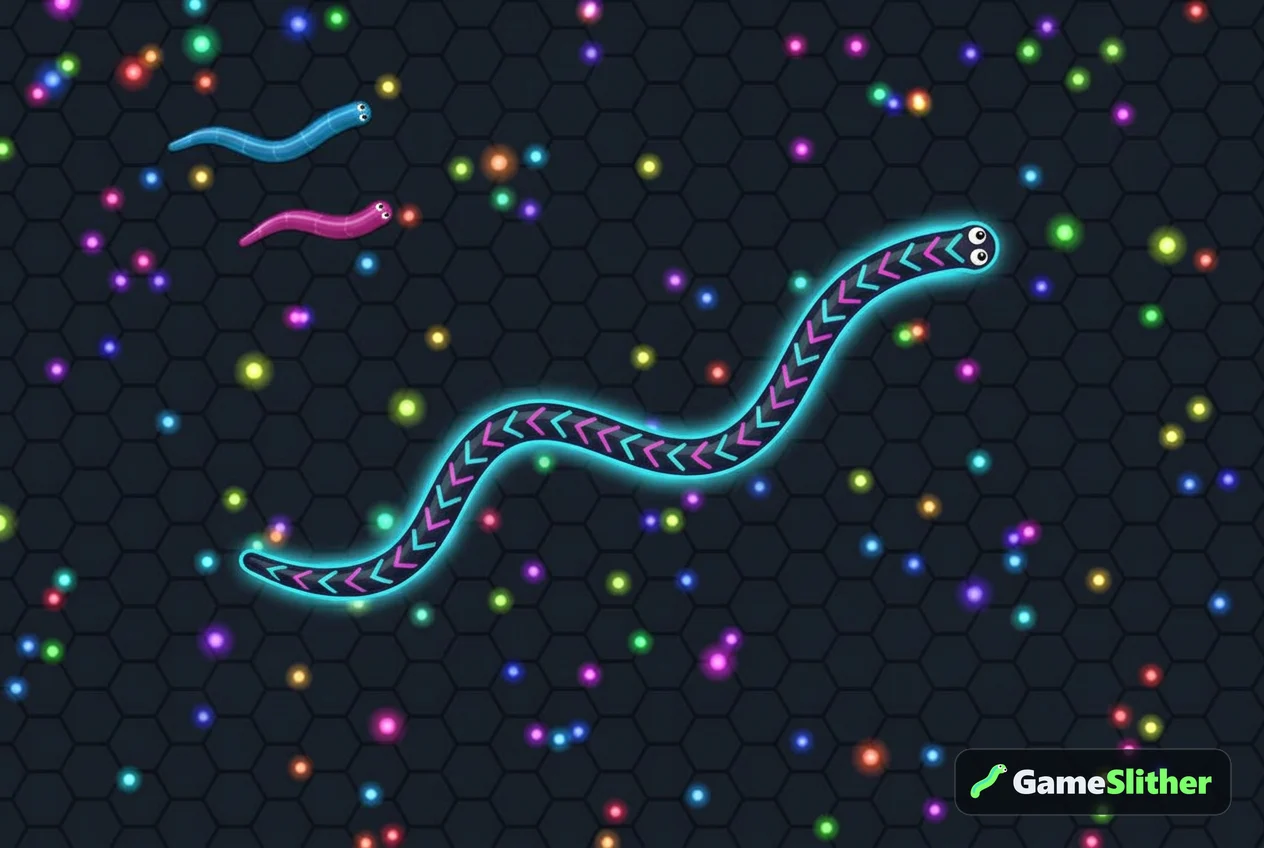
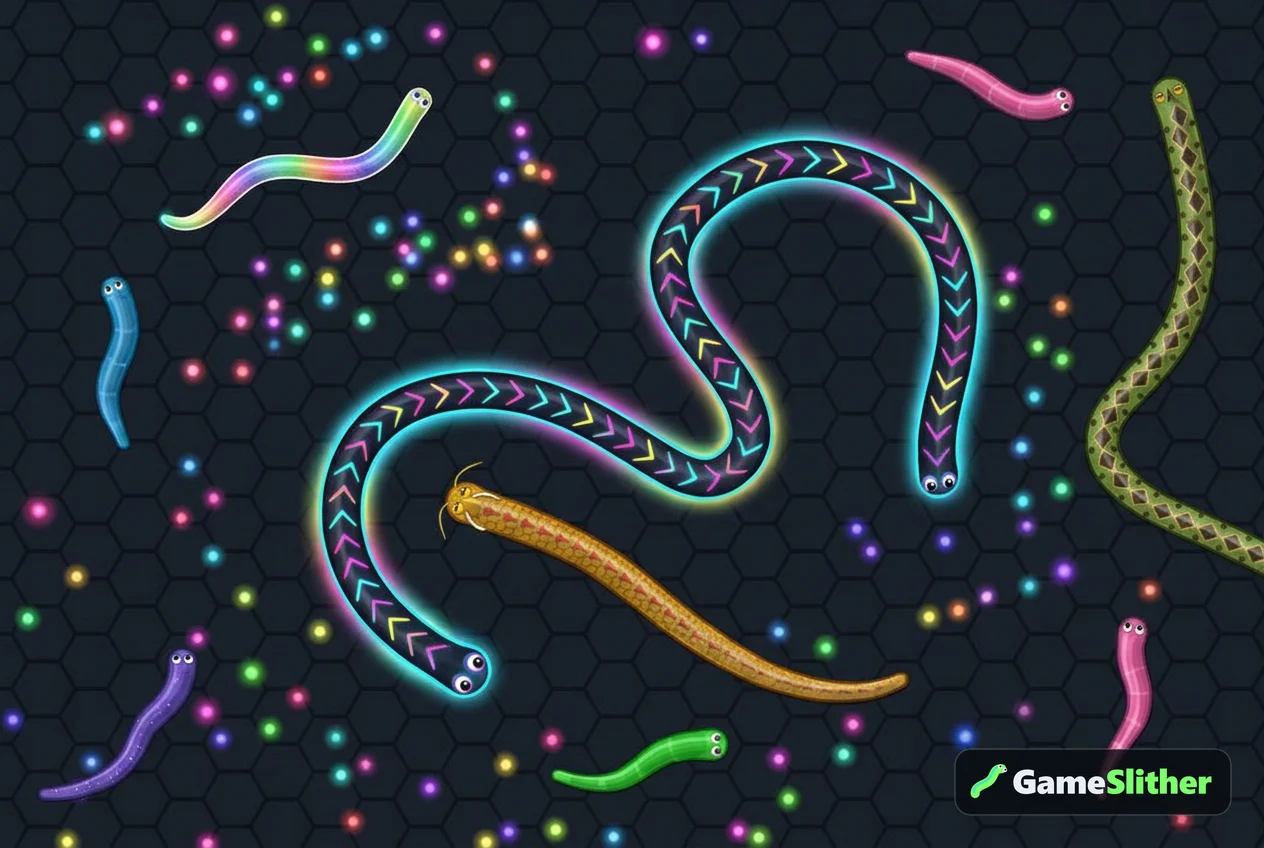
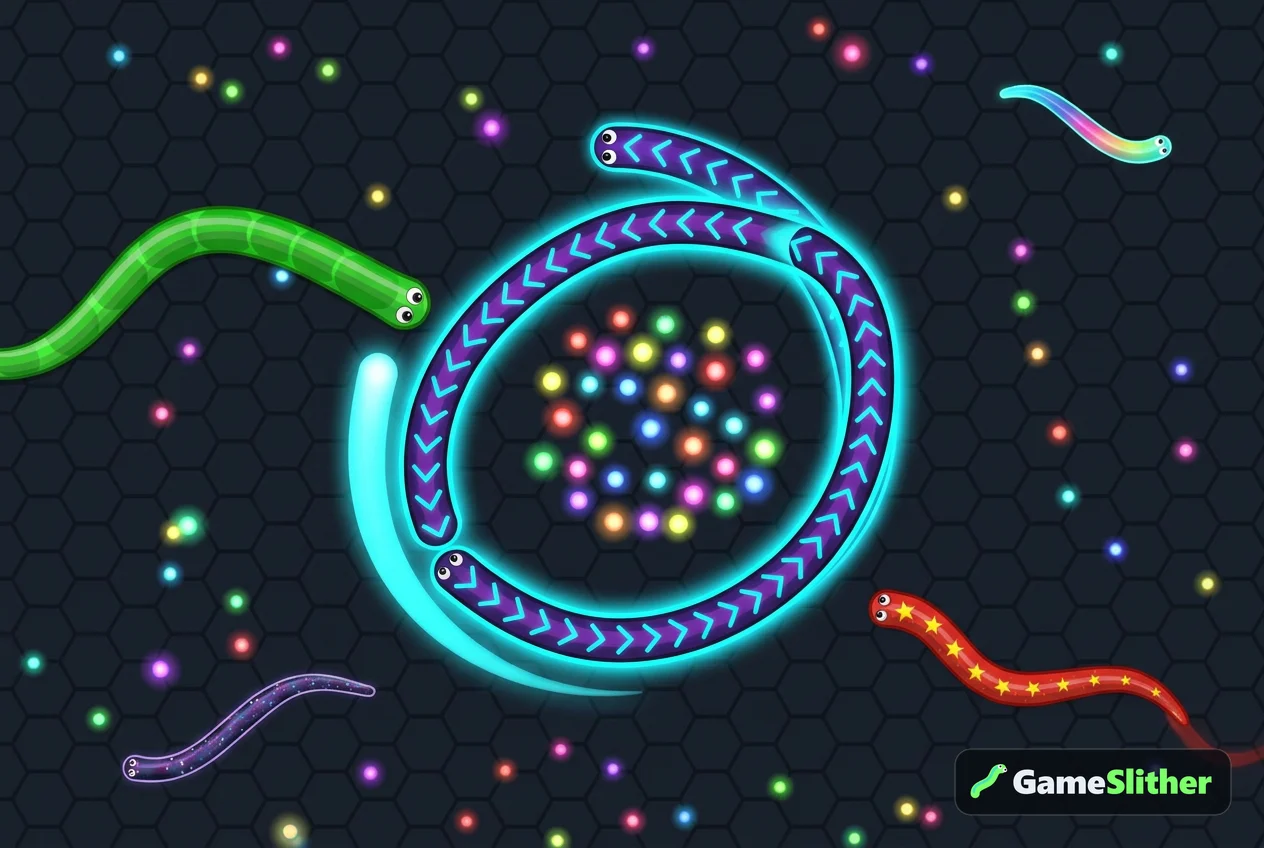
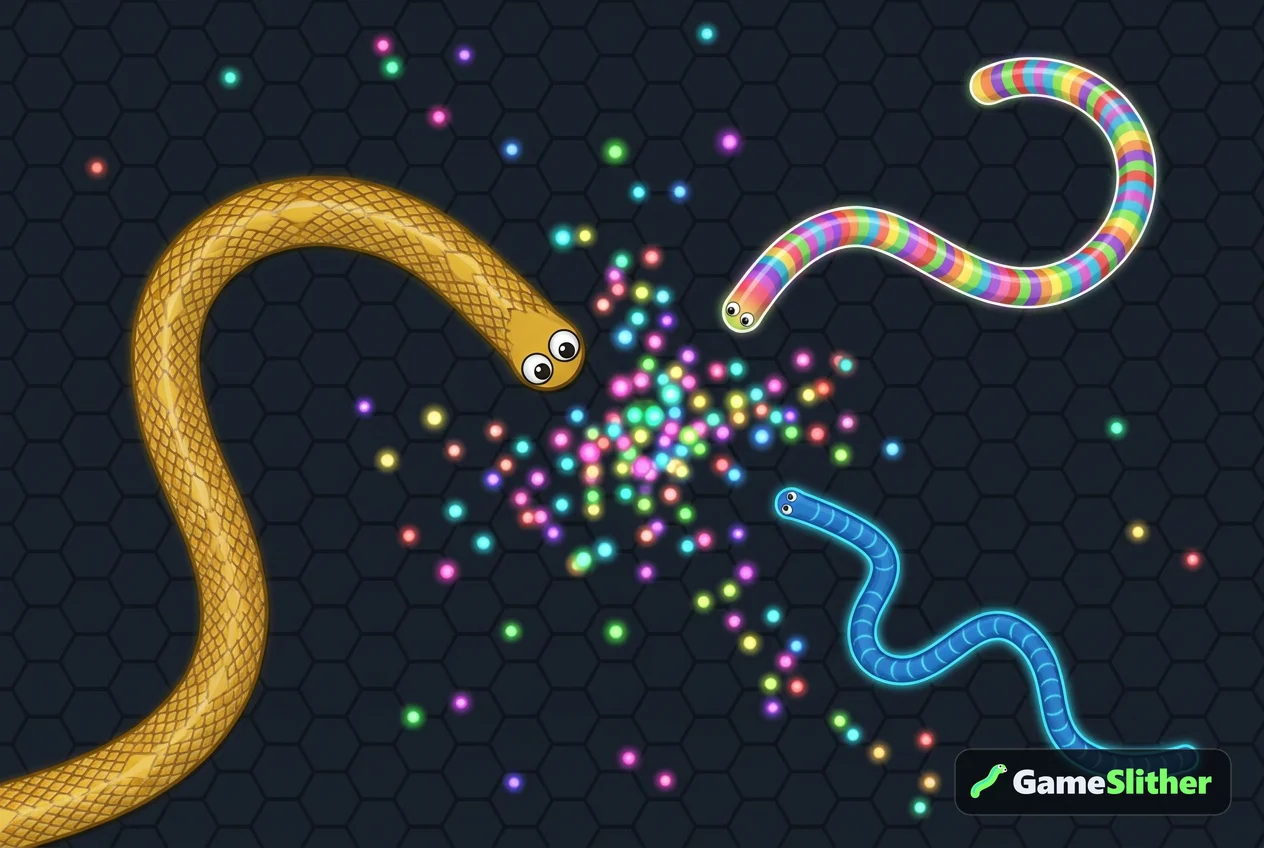
- Neon Cyber and Galaxy stand out well in dim rooms.
- Golden Dragon and Rainbow Candy pop in bright daylight.
- Jungle Python is the sneaky pick if you'd rather be a bit harder for others to spot.
All six base skins are free, and you can browse them on the snake skins page. Achievement skins like Inferno, Frost, Shadow and Aurora are earned, not bought — a nice long-term goal once your iPad control is dialled in.
Put it into practice
Fat-finger deaths aren't a skill problem, they're a setup problem. Landscape, rotation locked, clean screen, thumbs in the bottom corners, short boost taps instead of long holds — do those five things and your average run length will climb before you've learned a single advanced trick.
Ready to test the slitherio controls on iPad for yourself? Jump into a free round of GameSlither — no download, no sign-up, just open the browser, pick a skin and drag. The 40-snake lobby is already waiting.
Frequently asked questions
How do you control a slither io style snake on an iPad?
Touch the screen and drag — your snake steers toward your finger — and use the ⚡ button (or a held touch) to boost. Boosting costs length and drops pellets behind you, so use short bursts rather than long holds.
Why do I keep dying on iPad but not on a computer?
Usually because your hand covers part of the arena and your finger sits too close to the snake's head. Keep your steering thumb in a bottom corner, play in landscape with rotation locked, and make small corrections instead of big swipes.
Is an iPad better than a phone for playing a snake io game?
Generally yes — the bigger screen gives you a wider view and smoother turning arcs. Phones win on portability and give you vibration feedback, which tablets don't have.
Do I need to download an app to play GameSlither on iPad?
No. GameSlither runs directly in Safari, Chrome or any modern iPad browser with no download and no sign-up. You can start a game instantly.
Can I play with friends on iPad using a room code?
Yes. Create a private room and share its 4-character code or invite link with friends — they can join from an iPad, phone or desktop browser.