Slither io on Chromebook: Play at School or Work
Contents
If you have a Chromebook and a few free minutes, you can play a slither io style snake game right now without installing anything. GameSlither runs entirely in the Chrome browser, so you just open a tab, type a nickname and start moving. This guide walks you through every step slowly, explains the Chromebook-specific controls, and covers how to be sensible about playing on a school or work device.
Why a Chromebook is a great fit for slither io on Chromebook
Chromebooks are built around the browser, and that is exactly what GameSlither needs. There is no download, no installer and no sign-up, so none of the usual Chromebook restrictions (like "you can't install .exe files") get in the way.
A few other reasons it works well:
- The game is lightweight, so even an entry-level Chromebook with 4 GB of RAM can handle it.
- It works on desktop, tablet and phone browsers, so your Chromebook in tablet mode is fine too.
- Rounds are short. You can play for five minutes on a break and close the tab.
- It's available in 11 languages, which helps if English isn't your first language.
Step by step: your first game in under a minute
Take it one line at a time — nothing here is complicated.
- Open the Chrome browser on your Chromebook (the round blue, red, yellow and green icon).
- Go to the GameSlither home page.
- Type any nickname you like in the box. It does not need to be unique and you never create an account.
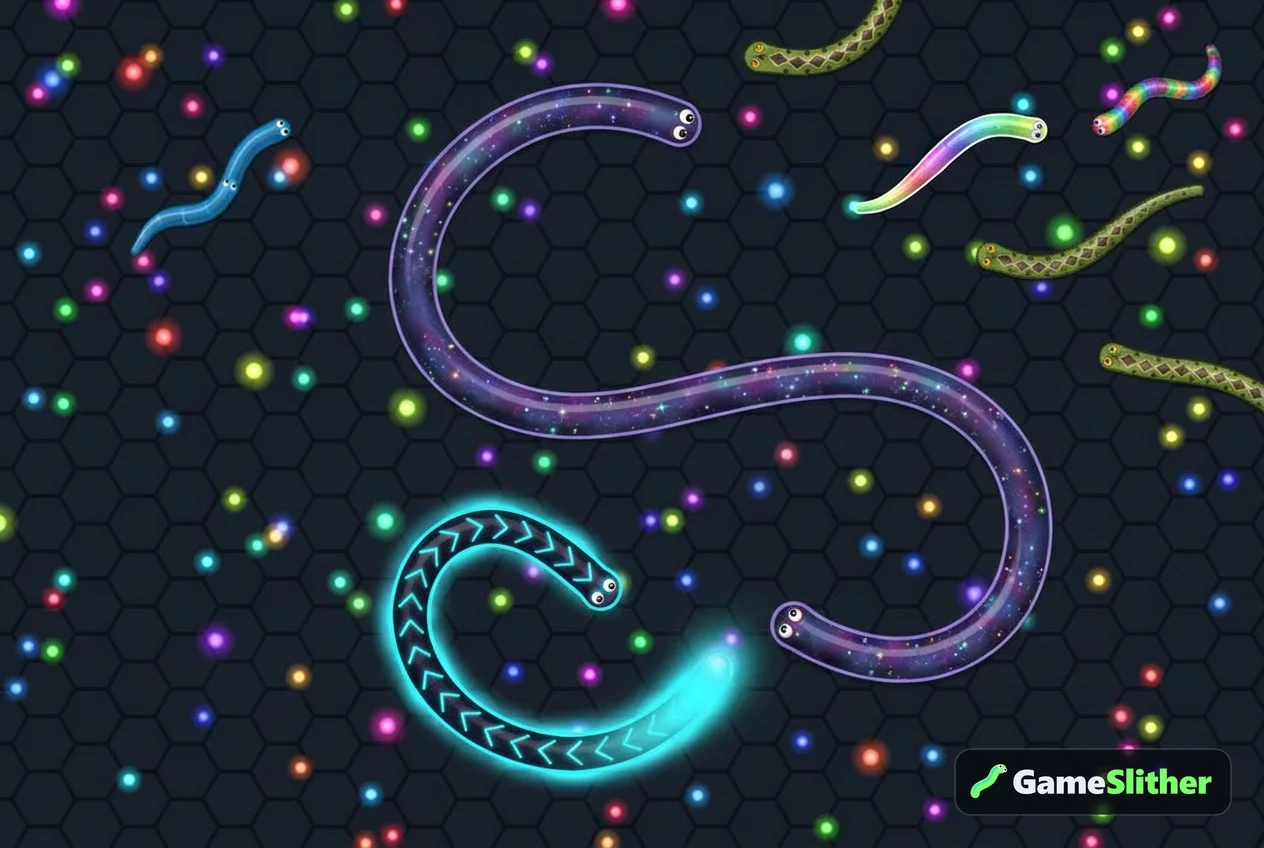
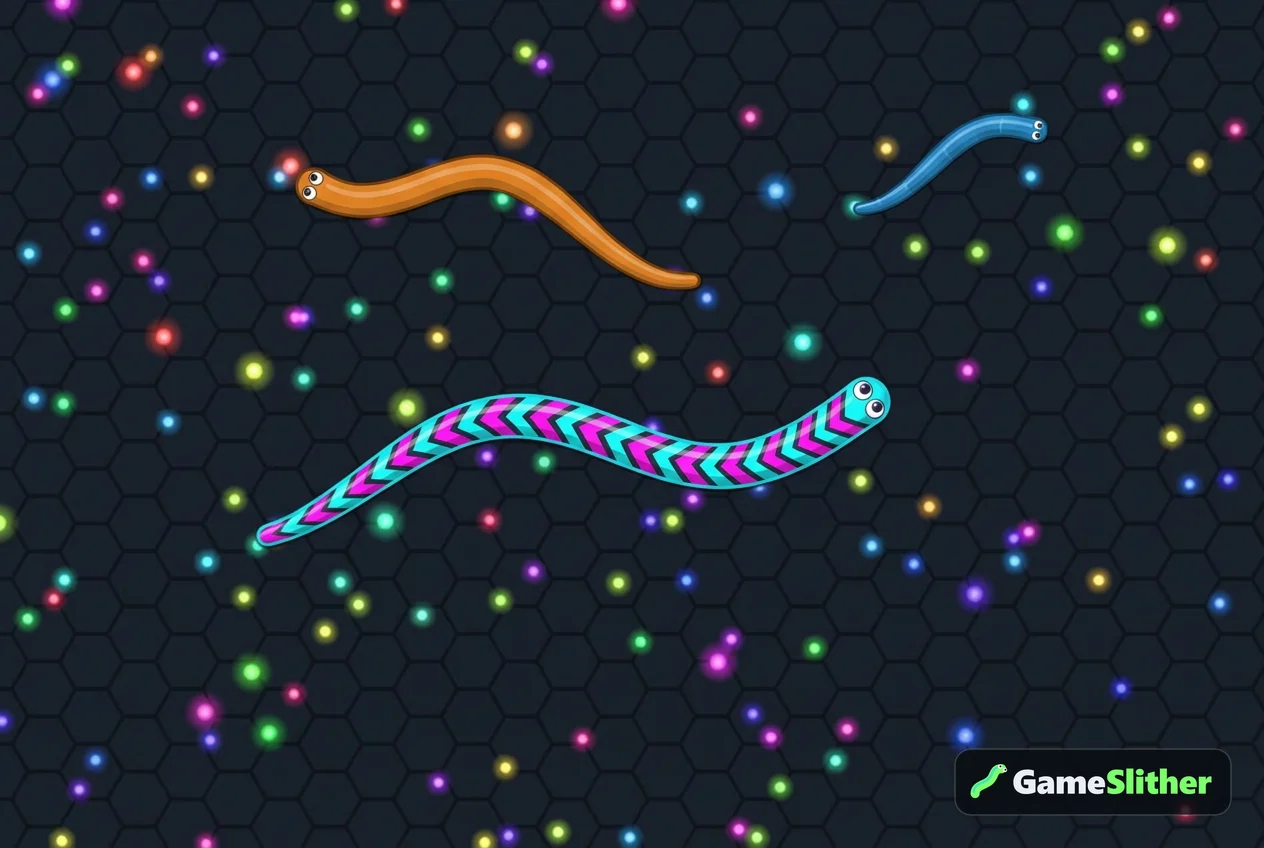
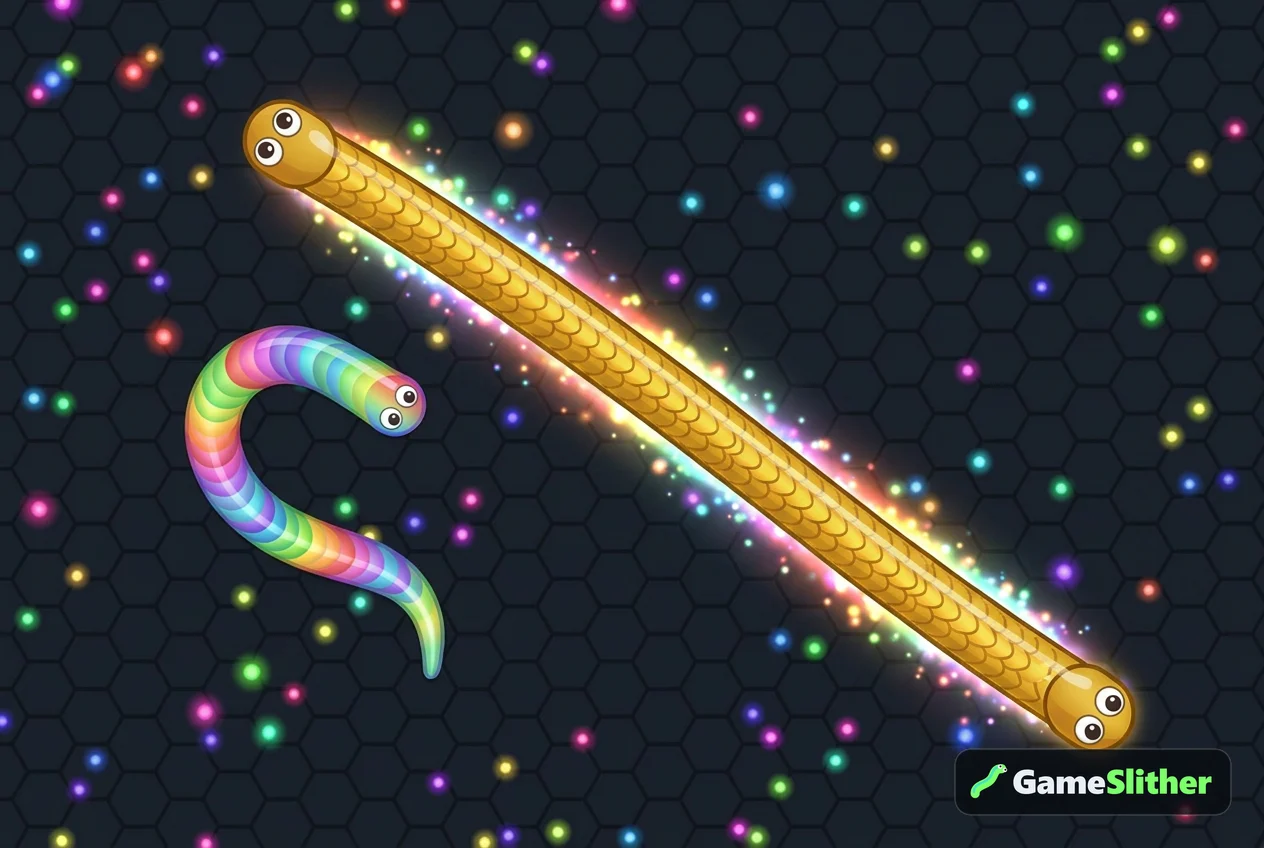
- Choose a snake skin. Six are free: Classic (12 colours), Neon Cyber, Golden Dragon, Rainbow Candy, Jungle Python and Galaxy. You can browse them on the snake skins section.
- Click Play to join a public room with up to 50 players plus AI snakes.
- Move your cursor — your snake follows it. Eat the glowing pellets to grow.
- To speed up, hold left click, press Space, or tap the ⚡ button. Boosting burns a little of your length, so use it in short taps.
That's it. If you crash into another snake's body, you simply restart — there are no lives to lose. A longer walkthrough lives in the how to play guide.
Chromebook controls: trackpad, mouse or touchscreen
This is the part that confuses most new Chromebook players, so here is a plain comparison.
| Input method | How to steer | How to boost | Best for |
|---|---|---|---|
| Built-in trackpad | Slide one finger; the snake follows the pointer | Press firmly (click) or hold Space | Casual play anywhere |
| USB or Bluetooth mouse | Move the mouse | Hold left click | The most precise control |
| Touchscreen (tablet mode) | Drag your finger where you want to go | Tap and hold the ⚡ button | Sofa and break-time play |
Small settings that make a big difference
- Turn on tap-to-click in Settings → Touchpad, so a light tap counts as a boost.
- Raise the pointer speed slightly. On a slow setting you physically run out of trackpad before your snake finishes turning.
- If you own a cheap USB mouse, bring it. A real mouse is the single biggest upgrade for this genre.
Playing at school or work the sensible way
Being honest here matters more than any trick. School and company Chromebooks are managed devices: an administrator can see installed extensions, applied policies and often browsing activity.
So, the respectful approach:
- Play during breaks, lunch or free periods, never during a lesson or a meeting.
- Check your school's or employer's acceptable-use policy first. If games are not allowed, accept that and play at home instead.
- Do not install VPNs, proxies or "unblocker" extensions on a managed Chromebook. That usually breaks the rules outright and can get the device flagged.
- Keep the volume down or muted, and close the tab when the break ends.
If a site is blocked on your network, the honest answer is that it is blocked on purpose. Our article on playing in a browser safely explains why chasing sketchy mirror sites is a bad idea — many of them are ad-stuffed clones.

Keeping the game smooth on a modest Chromebook
If your snake feels laggy or jumpy, try these in order:
- Close extra tabs. Chromebooks share memory between tabs, and ten open tabs will slow any browser game.
- Use full screen by pressing the full-screen key (the rectangle, above the 4 key). Fewer pixels wasted on toolbars.
- Unplug an external monitor if you use one — driving two screens costs performance.
- Restart the Chromebook if it has been asleep for days. It clears background processes.
- Plug in the charger. Some Chromebooks throttle performance on low battery.
A stable frame rate matters in this genre, because dodging a wall of snake at the last moment depends on reacting within a fraction of a second.
Play with friends on the school Wi-Fi
GameSlither lets you create a private room and share a 4-character code. If two or three classmates have Chromebooks, everyone types the same code and you get your own little arena — no strangers, no AI, just your group. The step-by-step version is in our guide to playing with friends in a private room.
While you play, free games earn coins: +1 coin per 10 length reached and +5 per snake you take down. Those coins unlock 23 country-flag skins in the shop. They have no money value and cost nothing — they are just a reason to keep improving.
Ready to play?
Playing slither io on a Chromebook really is as simple as opening a tab, as long as you do it on your own time and within your school's or employer's rules. Set up your pointer speed, grab a mouse if you have one, and keep your boosts short.
When your next break starts, open GameSlither and jump into a round — and if you want to climb the leaderboard faster, read our 10 tips for getting big.
Frequently asked questions
Can I play slither io on a Chromebook without downloading anything?
Yes. GameSlither runs entirely in the Chrome browser with no installation and no sign-up, which suits Chromebooks perfectly. Just open the home page, pick a nickname and play.
Does GameSlither work on a school Chromebook?
It works technically, as long as your network administrator has not blocked the site. Always check your school's acceptable-use policy and play on breaks rather than during lessons.
How do I boost on a Chromebook trackpad?
Hold a click on the trackpad, or press and hold the Space bar, which many players find easier. Boosting costs a little length, so use short taps instead of long holds.
Is GameSlither the same as Slither.io?
No. GameSlither is an independent browser game in the same genre and is not affiliated with Slither.io or Lowtech Studios. You can see the differences on the comparison section.
Why does the game feel laggy on my Chromebook?
Usually too many open tabs or a low battery causing performance throttling. Close spare tabs, plug in the charger and play in full screen for a smoother frame rate.